reciProfity supports multiple vendor templates, making it easy to import order guides from major suppliers such as Sysco, GFS, Performance Food Group (PFG), Reinhart, US Foods (USF), and Ben E. Keith. Each vendor has a specific file format requirement, and reciProfity provides built-in templates to match these formats for seamless importing.
Vendor-Specific Format Requirements
reciProfity provides built-in templates for the following vendors:
Please note: Some vendor templates are temporarily unavailable. Please reach out to the reciProfity team if you need a template that's currently unavailable.
Sysco / eSysco
-
Instructions:
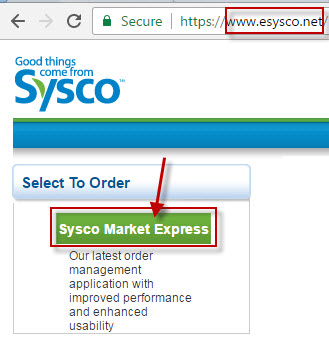
- Log in to eSysco and choose Sysco Market Express.
- Click on Order Guide.

- Click Export.
- In the popup, choose Option 2 — it may be labeled Foodtrac, but it’s also compatible with reciProfity.
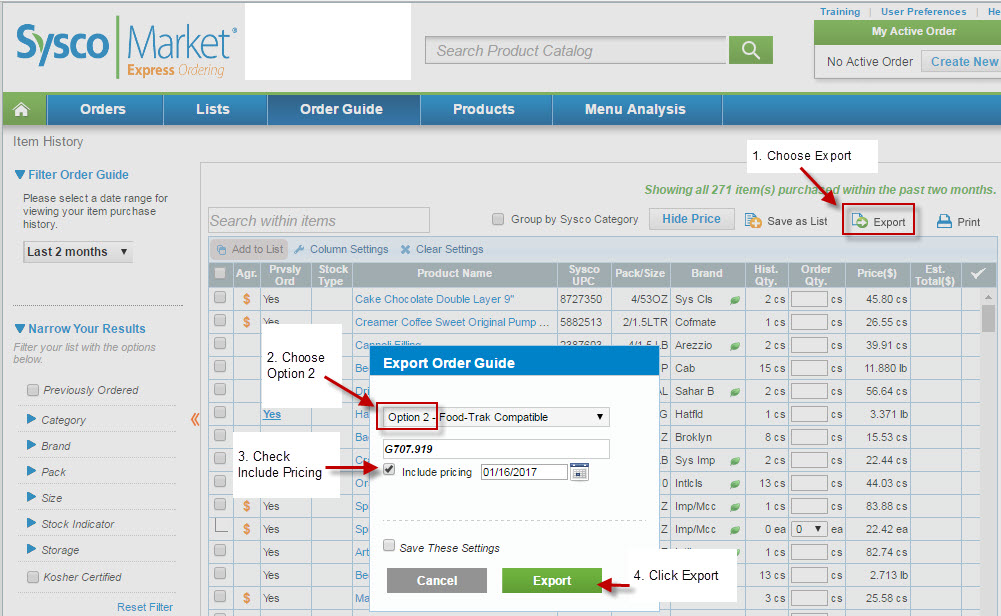
- In the popup, choose Option 2 — it may be labeled Foodtrac, but it’s also compatible with reciProfity.
- Log in to eSysco and choose Sysco Market Express.
- Note: This export will generate a file that starts with G and ends with .700, which matches the required layout for importing into reciProfity.
🔹 GFS (Gordon Food Service)
-
Instructions:
- Please ask your GFS representative for an 832 Order Guide. A sample template is also available at the bottom of this article: Available Vendor Templates.
- Use the Gordon Food Service US template in reciProfity to import your order guide.
- The file will be a CSV in the required format.
🔹 Performance Food Group (PFG)
- Use the PFG order guide format provided by reciProfity, which can be found here at the bottom of this article: Available Vendor Templates.
- The file will be a CSV in the required format:
🔹 Reinhart
- Use the sample Reinhart order guide format provided (currently unavailable). The file will be a .txt in the required format:
🔹 US Foods (USF)
Required Format: .csv or ASCII
If you're using the latest version of the US Foodservice website, you can download the order guide in .csv format. It should look like this:
Follow these steps to download the file:
-
- Login to US Foods
- Click Order Guide and choose View All Lists
- Next, choose Options, then choose Download.
- Here, you can choose to download the order guide in .csv format.
- Once downloaded, upload it using the US Foodservice import option in reciProfity.
If your version of the USF system outputs an ASCII file:
- Go to Tools/Utilities → Download
- Choose ASCII as the output
- Save the file
🔹 Ben E. Keith
- Use the sample Ben E. Keith order guide format provided (currently unavailable). The file will be a .csv in the required format:
Notes
- If your vendor is not listed or your file doesn’t match the expected format, you can always use the Custom Excel Order Guide Import option.
- Ensuring your file matches the correct format will help avoid import errors and reduce the need for manual corrections.
Step-by-Step Import Instructions
Once you’ve confirmed that your order guide matches the required format for your vendor, follow these steps to import it into reciProfity:
1. Select the Vendor Template
- Go to the import screen in reciProfity.
- Click Select Vendor Template and choose the format that matches your supplier.
- For example, choose eSysco if you're importing a Sysco
.700file.
- For example, choose eSysco if you're importing a Sysco
2. Upload the Order Guide File
- Click Browse File and select the saved order guide from your system.
3. Preview the Import
- Click Continue to view a preview of the data.
- Confirm that the fields match what you expect.
- Click Check All to import everything or manually select specific items.
4. Import the Data
- Click Import to complete the upload.
5. Verify the Imported Items
- Scroll down to see the list of imported items.
- Click on a blue item name to open the ingredient pop-up.
- Review the details to ensure everything imported correctly.
- Double-check packaging and conversions if applicable.
- If the data looks incorrect or fields are missing, click the Undo Import button to start fresh.
7. Next Steps
- If everything looks good:
- You can upload another order guide.
- Or return to the dashboard to begin entering recipes or optimizing your data.
Important Notes
Before you begin entering recipes or optimizing your data in reciProfity, keep the following tips in mind to ensure a smooth and accurate import process:
Undo Is Always Available
After importing your order guide, you’ll have one final opportunity to undo the import if something doesn’t look right. This is especially helpful if:
- Fields are missing
- Packaging details are incorrect
- Ingredient data appears misaligned
Click the Undo Import button to start fresh and re-upload your file.
Double-Check Your Data
Once the import is complete:
- Scroll down to view the full list of imported items.
- Click on any blue item name to open the ingredient pop-up.
- Confirm that all fields—especially packaging and conversions—have been imported correctly.
Conversions Matter
Conversions play a critical role in recipe costing and portioning. Before entering recipes, take time to understand how conversions work in reciProfity. This will help ensure your data is accurate and your recipes are reliable.
Custom Excel Import Option
If your vendor’s file doesn’t match the expected format or layout, you can use the Custom Excel Order Guide Import feature. This allows you to manually map fields from a spreadsheet that doesn’t follow a standard template.
Available Vendor Templates
Please find the available vendor templates below: